

Information in Organization Management Menu screen
At the top of this screen, you can see your basic billing information (an overview of the contracts currently in effect). Also, the following 4 organization management menus are displayed at the bottom of the screen. For more information, select each menu and check the user help on each screen.
- Organization Details: Manage organization names, the display names (identifier) of machine translation engines used in your organization, information about SSO, and address/contact information. You can also use this screen to check if there are any notes from the system administrator.
- Billing Information: Manage basic billing information, payment method, contract plan, and billing information. You can also process your withdrawal from this screen.
- Payment History: Review billing records for which payment processing has been completed.
- Data Volume Inquiry: Displays the number of translated characters in Quick MT/PE and the data volume of LAC language assets in a line chart.
Basic Information section
The following information is displayed as the basic information. You can see the same information in Billing Information screen.
- Organization name
- Contract Plan: Displays the currently active plans (described below) and their details.
- Contract Period: The duration of the currently active contract.
- The number of users (accounts) registered in the organization.
- Customization Credit Balance (Total)
- TUs in use/Max. TUs: The number of TUs (Translation Units) of language assets currently owned by the organization in LAC, and its upper limit
- Custom Trained Models in use/Max. Custom Trained Models: The number of custom trained models currently owned by the organization in LAC, and its upper limit
- Custom Glossary Models in use/Max. Custom Glossary Models: The number of custom glossary models currently owned by the organization in LAC, and its upper limit
About the contract plans
The contract plans provided by this system are as follows: Depending on the plan, the availability of optional features, the number of Customization Credits (CC) granted, and the number of TU and models that can be owned vary. For details, please check User Help on Billing Information Details screen.
| Contract Plan | Purpose | Num of users (Default) |
IP Limit | SSO usage | Quick MT/PE | Customization(LAC) |
| Trial | For trial use | 1+ | ○ | ○ | ||
| Personal | For personal use | 1 | ○ | |||
| Professional | For personal use | 1 | ○ | ○ | ||
| Business | For organizational use | 1~9 | ○ | △ | ○ | ○ |
| Enterprise | For organizational use | 10+ | ○ | ○ | ○ | ○ |
In case the user temporarily registers by himself/herself
When the user starts using the service via temporary registration by clicking on [トライアルはこちら (Registration for trial use)] button on the login screen, the registered organization name will be the same string as the user's account name. In addition, the contract plan will automatically be the trial plan, and the registered account will be granted the roles of Organization Manager, Project Manager, and Linguist, as well as the optional role of LAC Admin.
About Customization Credit (CC)
- Customized Credit (CC) is required to create custom trained models in the Custom MT management menu in LAC. The predetermined CC(s) will be granted depending on the contract plan, and additional CC(s) will be granted if you agree to any paid option. If you want to have CC(s), please go to [Organization Management] tile in Service menu > Organization Management menu, and click [Change plan/limits] button on Billing Information screen and access XMAT Support Contact Form, or please contact our sales representative.
- To check your CC history (addition/consumption), please go to [Organization Management] tile of Service menu > Organization Management menu, and click [Customization Credit History] button on Billing Information screen.
- Current Customization Credit Balance: "Unused (Available)" is the number of CCs that are currently available, and "In use (Pending finalization)" is the number of CCs that are being used in the ongoing custom training process.
- Processed Date/Time: The date and time when the CC was actually added/consumed.
- Category: The reason of the addition/consumption
- Changed CCs: Number of CCs increased/decreased
- Application: MT learning service name for which CCs were used
- Updated By: If the category is "Custom Training", displays the account name of the user who executed the custom training. In case of "Additional Purchase", "Added by Admin", "Added for Trial Use", the character string "SYSTEM" is displayed as fixed.
The relationship of the organization, and groups and projects in Quick PE
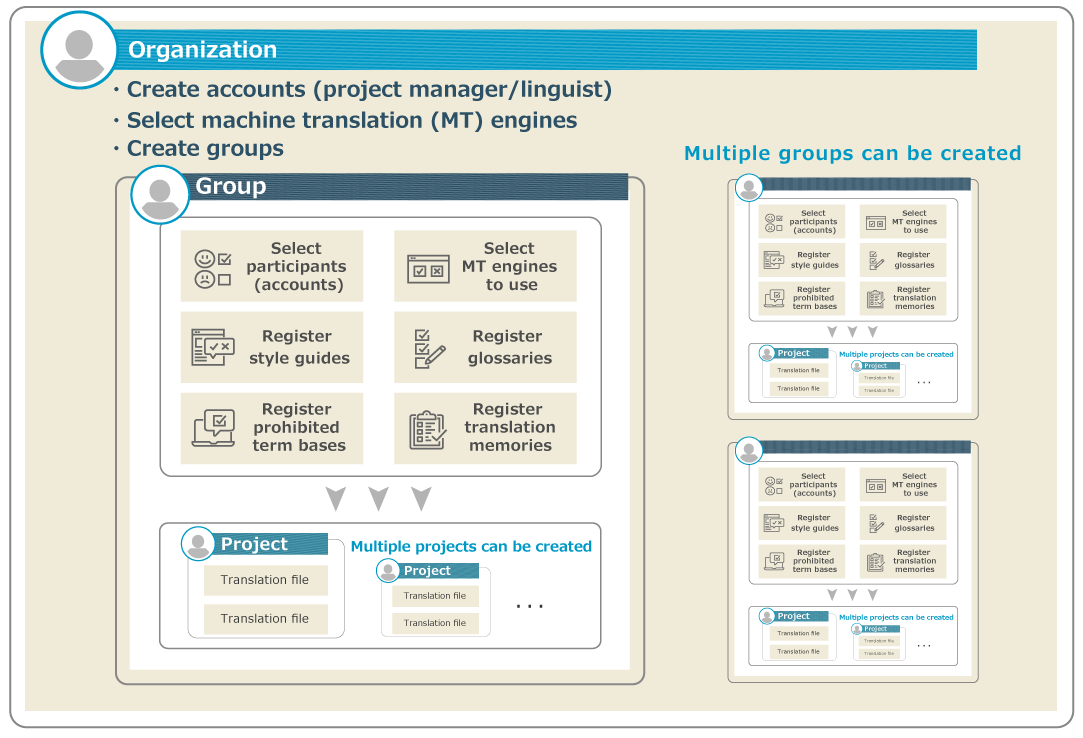
The relationship between the organization, and groups and projects in Quick PE is roughly as follows.
-
A project manager can create one or more groups in his or her organization.
-
The project manager can see a list of the groups registered in the organization to which he or she belongs. Even if you are not a member of a group, you can change the details of the group by referring to the group list and its details screen.
-
For each group, select the accounts that will participate in the group (as a project manager or a linguist) and the MT engines to be available. Also, register your project reference information (style guides, glossaries/LAC glossaries, prohibited term bases, and translation memories/LAC translation memories) as required.
-
Can create multiple projects in a group.
-
In Project Details screen, you can select the necessary information for the project from the accounts, MT engines, and project reference information available for each group, then upload the files for translation (source file) and set up the detailed information for the project.
-
Project managers and linguists can only view a list of projects in which they are involved. They will not be able to view projects in which he or she is not a participant.
前の記事
Organization Management (Payment History)
次の記事
Style Guide Manager (Style Guide List)