

Service Overview
XMAT (hereafter referred to as "the system") provides the following services that allow anyone to use machine translation (MT, AI translation) with ease and confidence. For details, please refer to the services page (https://ldxlab.io/xmat/) and User Help on each page. User interface (UI) language can be selected for each user (account) with English or Japanese.
- Quick MT: Offers the MT service with 100+ language combinations provided by 6+ different MT engines.
- Text Translation: Directly enter source text, perform MT with one click, and display the translation on the screen.
- Document Translation: The entire source file is translated by MT engines by drag and drop, and output in the original file format.
- Quick PE: In addition to utilizing the same MT engines as Quick MT, uses can do post editing on Web browser. The auto-verification feature allows users to apply glossaries, analogize errors and omissions, and automatically verify styles.
- LAC (Language Asset Creator): Leverages AI to help you create language assets and custom machine translation (MT) models.
Supported Browsers
This system supports the following browsers.
Windows OS: Microsoft Edge (Chromium-based), Google Chrome, Mozilla Firefox
Mac OS: Google Chrome
Quick MT - Text Translation: Overview
Quick MT - Text Translation meets the following requirements. Please use [Quick MT - Text Translation] tile in Services Menu screen.
- You want to manually type (or copy and paste) texts into an input field and then easily machine translate it.
- You want to compare translations from multiple MT engines and/or language pairs on a single screen.
- Post-editing on the system is not necessary; you just need to get the machine translated results.
The general procedure is as follows;
- In each translation area, select a MT engine to use, and configure its option settings (language pairs and so on).
- Enter the source text for translation manually or by copy and paste in the input field.
- Click [Translate] button, then the machine translation process starts.
- Once the engine has completed the processing, the translation text is displayed. You can create multiple translation areas to see translations from different MT engines and language pairs on one screen.
Quick MT - Document Translation: Overview
Quick MT - Document Translation meets the following requirements. Please use [Quick MT - Document Translation] tile in Services Menu screen.
- You want to perform machine translation of multiple files with just one-click.
- You want to perform machine translation of the extracted texts from PDF and image files easily.
- You don't want to keep the original uploaded data (source files) on the server as much as possible.
- Post-editing on the system is not necessary; you just need to get the machine translated results.
The general procedure is as follows;
- Select a MT engine to use, and configure its option settings (language pairs and so on).
- Select the files for translation. You can select more than one file, and translate in bulk.
- Click [START] button, then the machine translation process starts.
- Once the engine has completed the processing, the translated files are listed. You can download these files by [Download] button.
Quick PE: Overview
Quick PE meets the following requirements. Please use [Quick PE] tile in Services Menu screen.
- You want to post-edit not only text files but also text information contained in PDF and image files.
- You want to set up the style guide, glossary, prohibited term base and translation memory, and post-edit the machine translation results by referring to them.
- You want to manage users (accounts) and translation files for work by group and/or project.
The general procedure is as follows;
- Depending on your requirements, register reference information (style guide, glossary, and prohibited term base) for machine translation and post-editing.
- Create a group and select the participants (project managers and linguists) and the reference information (style guide, glossary, prohibited term base, and translation memory) in that group. (A group is a unit that uses a common style guides, glossaries/LAC glossaries, prohibited term bases, and translation memories/LAC translation memories. The system assumes that a group is a customer/business partner.)
- Create projects that belong to a group, select the participants and the reference information in the project, and upload the translation files for work. A group can have multiple projects.
- Once a project manager starts a project, the MT engine will proceed and complete the translation and the linguist can post-edit (or review after the post-editing if necessary) it in File Editor. Users can then download the in-processing or completed files when necessary.
LAC (Language Asset Creator) Service Overview
LAC meets the following requirements. Please use [LAC] tile in Services Menu screen.
- You want to create a linguistic asset (Translation Memory (TM)/Glossary) from a large number of language files and data in your company.
- You want to create a language asset from the texts available on the Internet and/or the stockdata provided in this system.
- You want to customize MT by utilizing your language assets and create your custom MT models that output translations specialized in a specific domain.
- You want to use the customized language assets and the customized MT models to perform machine translation and post-editing.
The general procedure is as follows;
- Register language assets (Translation Memory and Glossary). There are three ways to do this:
- (1) Import the language data (e.g., source-translation text bilingual files, source text monolingual files) that you have locally.
- (2) Extract language data from available texts on the Internet (or files you have locally) by leveraging AI, and import the aligned data.
- (3) Import the stockdata provided in this system.
- Perform custom training of MT learning services using your language assets, and create custom trained models.
- Apply a glossary to the general model or the created custom trained model of each MT learning service to create custom glossary models.
Account roles
An account has four basic roles and one optional role. You can set up one or more roles per account.
- Basic roles: Any account that uses this system must be granted one of these roles.
- System Administrator: A user who manages the system. An account with this role can manage accounts and configure the machine translation engine to be used for multiple organizations.
- Organization Manager: A user who belongs to and manages an organization (company or individual). They can manage the accounts belonging to the organization and configure the machine translation engine's identifier to be used for the organization. More than one organization manager can be registered in an organization.
- Project Manager: A user who belongs to an organization and manages groups, projects and reference information (style guides, glossaries/LAC glossaries, prohibited term bases, and translation memories/LAC translation memories) in Quick PE. They can assign files to be worked on and linguists to them. More than one project manager can be registered in an organization.
- Linguist: A user who belongs to an organization and uses the Quick PE editor functions to edit (post-edit and check) the files they are working on. More than one
linguist can be registered in an organization.
- Optional role:
- LAC Administrator: A user who belongs to an organization and manages custom MT models from the LAC management menu ([LAC] tile in Service Menu screen). This optional role to be granted to an account that has one of the basic roles.
| Service | ||||||
| Menu/Function | System Admin | Organization Manager |
Project Manager |
Linguist | LAC Admin (Optional) |
|
| Quick MT | Text Translation | X (*1) | X (*1) | X (*1) | X (*1) | |
| Document Translation (File batch translation) | X (*1) | X (*1) | X (*1) | X (*1) | ||
| Quick PE | Style Guide Management | X | ||||
| Glossary Management | X | |||||
| Prohibited Term Base Management | X | |||||
| Group Management | X | |||||
| Project Management | X | |||||
| File Editor (Post Editing/Check) | X | X | ||||
| LAC | Custom MT Model Management (Display) | X | X | X | X | X |
| Custom MT Model Management (Register/Update/Delete) | X (*2) | X (*2) | X (*2) | X (*2) | X | |
| Language Asset Management (Display) | X | X | X | X | X | |
| Custom MT model management (Update/Delete) (Including Data Extraction/Alignment and Stockdata Import) |
X (*2) | X (*2) | X (*2) | X (※2) | X | |
| MT Learning Service Settings | X (※2) | X (※2) | X (※2) | X (※2) | X | |
| Organization Management |
Register/Delete Organization | X | ||||
| Register Organization (Registered temporally by self-service) | X | |||||
| Update Organization Details | X | X | ||||
| Manage Billing and Contract Information | X | X | ||||
| Account Management | Display/Register/Update/Delete Accounts | X | X |
The relationship of the organization, and groups and projects in Quick PE
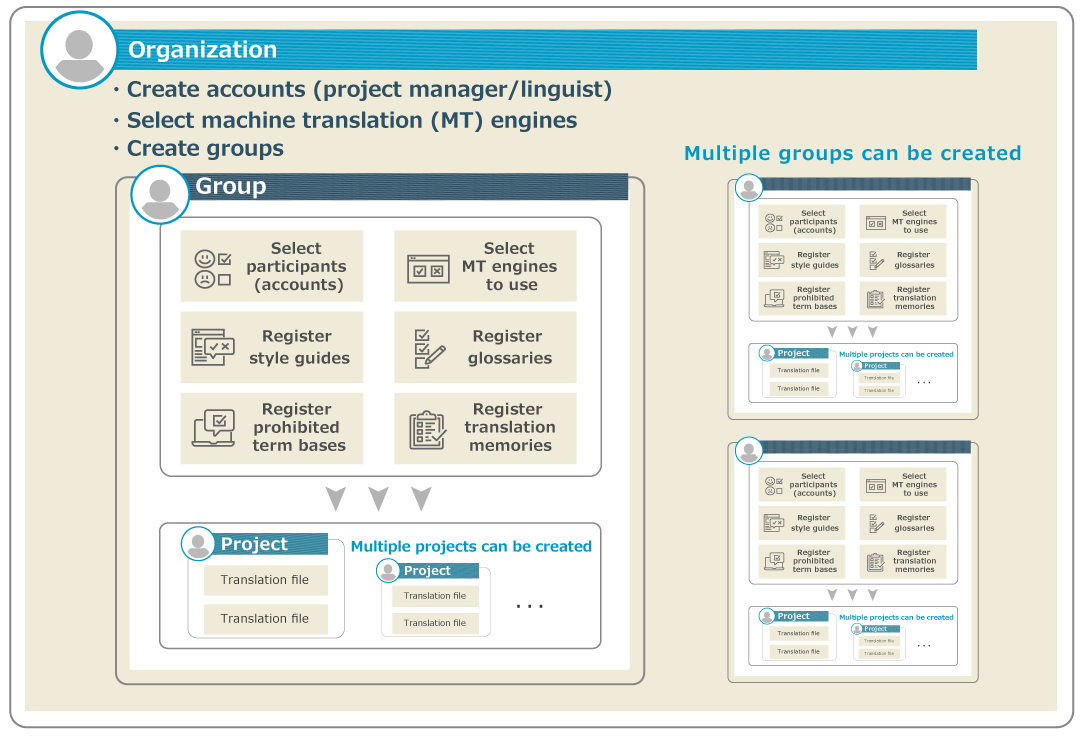
The relationship between the organization, and groups and projects in Quick PE is roughly as follows.
-
- A project manager can create one or more groups in his or her organization.
- The project manager can see a list of the groups registered in the organization to which he or she belongs. Even if you are not a member of a group, you can change the details of the group by referring to the group list and its details screen.
- For each group, select the accounts that will participate in the group (as a project manager or a linguist) and the MT engines to be available. Also, register your project reference information (style guides, glossaries/LAC glossaries, prohibited term bases, and translation memories/LAC translation memories) as required.
-
- Can create multiple projects in a group.
- In Project Details screen, you can select the necessary information for the project from the accounts, MT engines, and project reference information available for each group, then upload the files for translation (source file) and set up the detailed information for the project.
- Project managers and linguists can only view a list of projects in which they are involved. They will not be able to view projects in which he or she is not a participant.
前の記事
Language Asset Management (Language Asset Editor)
次の記事
Custom Machine Translation Manager (Custom Glossary Model List)