

About the list of projects
This screen displays the list of projects that belong to the group you are a member of (for project managers) or the list of projects that you are registered as a translator or reviewer (for linguists). You can also search for projects by specifying criteria. To create a new project, click [+Create New Project] button.
- Search criteria area
- Project Name
- Group Name
- File Name
- Status
- Last Update
- List of projects
- File Name : The file you are working on that is registered in the project. If you click the link, File Editor screen will be launched in a separate tab.
- Import status : Displays the percentage of the progress of importing the files you are working on since the start of the project. At 100%, you can click on the file name.
- Progress: Shows the percentage of progress (the rate of the segments with " Fixed" status) of each file. When the linguist (translator or reviewer) assigned to the file clicks [Complete] on File Editor, "Complete" is displayed.
- Last Update: The date when the project setting was last updated.
- Status
- Saved : The project has been newly created, but has not yet started.
- Importing : The project has started and the import of the files you are working on is in progress.
- Editing : The file import process is complete. Can edit (post-edit) the file by opening it in File Editor.
- Complete : The status when [Complete] button in Project Details screen was clicked. You cannot change any settings of a completed project. However, you can change it again by clicking [Restart] button in Project Details screen.
-
- Import failed : A project has been started, but the import process for the file you are working on has failed in the middle, resulting in an error. Details of the error are displayed in Project Details screen.
- Settings : Click gear icon to open Project Details screen where you can review or change the project details.
The relationship of the organization, and groups and projects in Quick PE
The relationship between the organization, and groups and projects in Quick PE is roughly as follows.
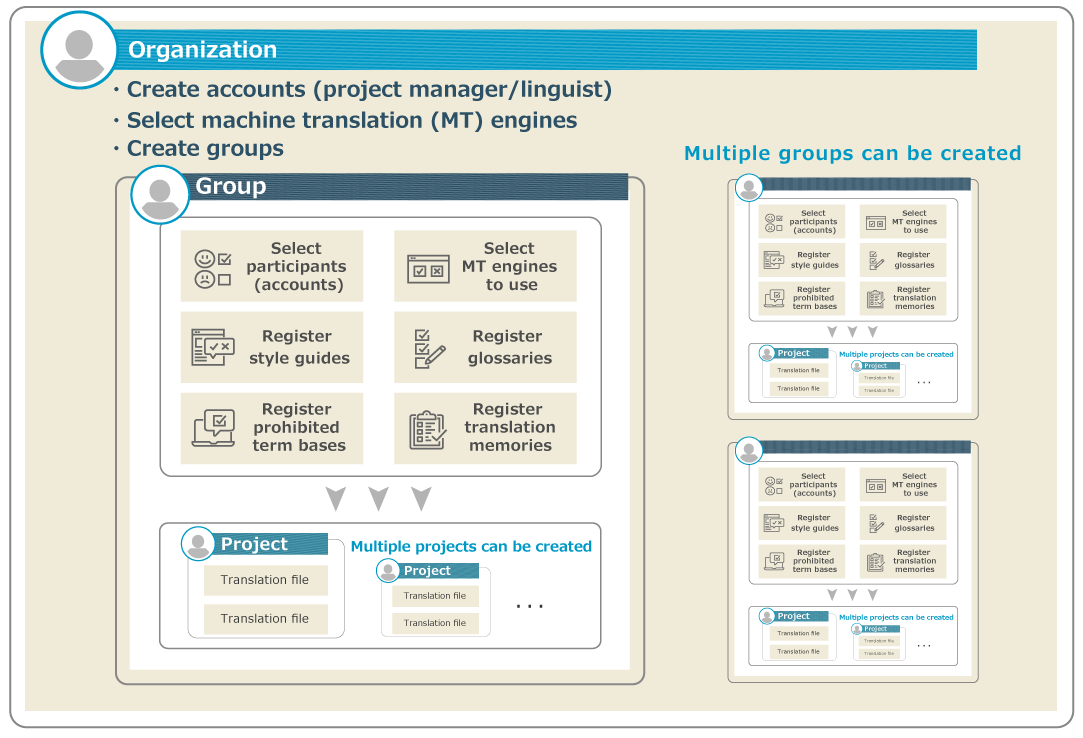
- A project manager can create one or more groups in his or her organization.
- The project manager can see a list of the groups registered in the organization to which he or she belongs. Even if you are not a member of a group, you can change the details of the group by referring to the group list and its details screen.
- For each group, select the accounts that will participate in the group (as a project manager or a linguist) and the MT engines to be available. Also, register your project reference information (style guides, glossaries/LAC glossaries, prohibited term bases, and translation memories/LAC translation memories) as required.
- Can create multiple projects in a group.
- In Project Details screen, you can select the necessary information for the project from the accounts, MT engines, and project reference information available for each group, then upload the files for translation (source file) and set up the detailed information for the project.
- Project managers and linguists can only view a list of projects in which they are involved. They will not be able to view projects in which he or she is not a participant.
前の記事

Language Asset Management (Language Asset Details)
次の記事
Custom Machine Translation Management (Custom Glossary Model Registration)