

What is a language asset?
There are two types of language assets in this system: “TM (translation memory)” and “Glossary”. In both cases, as a general rule, the source and translation pair (TU = Translation Unit) is counted as one line. You can register (import) your language assets in the following three ways. For details, please see the section below for details. The registered language assets can be used in Quick PE and LAC (Custom MT Model Management) of this system.
- (1) Import the language data (files) that you have locally.
- (2) Extract language data from available texts on the Internet (or files you have locally) by leveraging AI, and import the aligned data.
- (3) Import the stockdata provided in this system.
| Service | How to use | TM (Non Stockdata) |
TM (Stockdata) |
Glossary | Reference file |
| Quick PE | Select as a glossary | X | |||
| Select as a translation memory | X | X | |||
| Use as a reference file | X | X | X | X | |
| Quick MT | Use as a reference file | X | X | X | X |
| LAC (Custom MT Model Management) |
Create a custom trained model by using as corpus for the custom training | X | X | X | |
| Create a custom glossary model by setting it to a general/custom MT model | X |
Information in Language Asset List screen
This screen displays a list of language assets registered in your organization. You can also search for language assets by specifying criteria. To add a new language asset, click on "+ Register" button at the top of the screen.
- Search conditions area
- Type: Can select "TM" or "Glossary".
- Import Category: The import category under which the language asset was registered (see the following section for details).
- Language Asset Name
- Registration Start Date (UTC)
- Domain, Subdomain: Domain and Subdomain set for the language asset.
- Document Type, Subdocument Type: Document type and Subdocument type set for the language asset.
- Tag: The tag(s) set for the language asset.
- Language asset list
- Language Asset Name: Click to display Language Asset Details screen. The meanings of the icons displayed below the language asset names are as follows:
- Glossary ( icon): Displayed when the language asset is “Glossary”.
- LeftoverTM ( icon): Displayed when the Type is "TM" and LeftoverTM (described later). The word "(LeftoverTM)" is automatically added to the end of the language asset name.
- Import Category
- Status: The status of the language asset (see the section below for details). For only the language assets of "Import Complete", "Alignment Complete", and "Stockdata Import Complete", you can change the name of the language asset, and edit, combine, and delete the source and translation texts in Language Asset Editor. In addition, only the language assets of "Import Complete" and "Alignment Complete" can be selected as glossaries or translation memories in Quick PE.
- Language Asset Name: Click to display Language Asset Details screen. The meanings of the icons displayed below the language asset names are as follows:
- Data Usage: Displays the number of rows (TUs) of the language asset just after the import. Either the number of words (when the source text is in English) or the number of characters (when the source text is in Japanese) is also displayed. Aggregating the amount of data may take some time, depending on the size of the original file. During aggregation, “Aggregating...” is displayed.
- Edit: Click icon to open Language Asset Editor. You can do the following in Language Asset Editor. See the user help on the screen for more information.
- Add TU (pair of the source and target texts) by row
- Edit the source/target text of an existing TUs
- Delete unnecessary TUs
How to register language assets and the import category
There are three ways to register a language asset: Choose based on your business requirements, whether you have language data, and the type of language assets you have.
(1) A method to import language data (source-target text bilingual files, source text monolingual files, etc.) that the customer locally has
The import category of language assets is as follows. Specify the best method based on the type of original file and language asset. The default value of the registered language asset name is the file name of the original file (without the extension). * indicates the recommendation degree.
| Type | Import category | Explanation | Original file | Supported file format |
Processing time |
Language asset quality |
| TM | TMX Upload (*1) |
Registers the translation memory (TMX) as it is as a TM. Since no conversion process is performed, high-quality language assets can be registered in a short processing time. | Files in TMX format | tmx | *** | *** |
| TM Conversion | Creates a TM from a bilingual file (1 file) where the source and target text are paired. | Bilingual files | xliff、csv、tsv | ** | ** | |
| TM Alignment (*2) |
Creates a TM from monolingual files (2 files) for each of the source and target text. The alignment process takes a longer time, but you can create TMs from files of various formats. The source file and the target file should be in the same format. | Monolingual files for source and target text | docx、xlsx、 pptx、txt、html | * | ** | |
| TM Generation (AI) (*2, 3) |
Creates a TM from only the source monolingual file (1 file). Since translation is generated by the machine translation engine (*3), the processing time will be longer. Please choose this method when you have only the source file. You can import source files of 20,000 TU (lines) or less. The resulting translation is not very accurate, so please edit the content in Language Asset Editor screen by clicking icon in [Edit] column of List screen. |
Monolingual file for source text | docx、xlsx、pptx、txt、html | * | * | |
| Glossary | Glossary Conversion (*1) |
Registers the contents of a glossary format file as it is as a glossary. High quality language assets can be registered in a shorter processing time. | Glossary format files | xlsx、csv、tsv、tbx | *** | *** |
| Bilingual Glossary Extraction | Creates a glossary from a bilingual file (1 file) where the source and target text are paired. The processing time is longer because the process of extracting frequently occurring terms is performed. The term extraction is not very accurate (for example, the source or target text of the term is missing), so please edit the content in Language Asset Editor screen by clicking icon in [Edit] column of List screen. |
Bilingual files | xliff、csv、tsv、tmx | * | * | |
| Glossary Extraction | Creates a glossary from only the source monolingual file (1 file). The processing time is longer because the process of extracting frequently occurring terms is performed. Please choose this method when you have only the source file. The registered language asset does not include the translation, so please edit the content in Language Asset Editor screen by clicking icon in [Edit] column of List screen. |
Monolingual file for source text | docx、xlsx、pptx、txt、html、csv、tsv、srt、md、tmx、xliff | * | * | |
| Reference File | Reference File | Register the monolingual files used by RAG as language assets. | Monolingual file | .docx, .xlsx, .pptx, .txt, .html, .csv, .tsv, .srt, .md, .tmx, .xliff, .tbx, .pdf, .json, .jsonl, .xml | **** | **** |
(2) A method to extract language data from texts on the Internet (or files the customer can provide) to align the extracted data, then import the aligned data
Please use from [Extracted Data List] in the navigation on the left of the screen. From the website you specify (or from files at your provide), language data extraction and alignment are performed, leveraging AI technology. The aligned data is registered as the customer's language asset, and the type will be "TM". For details, refer to User Help of each screen from [Extracted Data List].
(3) A method to import Stockdata provided in this system
Please use from [Stockdata List] in the navigation on the left of the screen. Import the stockdata provided in the system as a language asset. Select the data you need by referring to the various attribute information set in the stockdata. The type is "TM". For details, refer to the user help of each screen from the [Stockdata List].
LeftoverTM and the criterion
When you register a TM as a language asset, with some import categories, you need to specify "Leftover criterion" for adopting TUs as a language asset from the original file. In this system, data that does not meet such standards is noise (mistranslation or correspondence deviation), and that is not suitable for TM as it is, then not adopted for TM. Therefore it will be treated as “Leftover”. “LeftoverTM” is a TM that collects only noise.
Depending on the data in the original file, LeftoverTM, which collects only data that does not meet the criterion, is registered separately in addition to the main TM that collects only the data that satisfies the criterion ("(LeftoverTM)" is automatically appended to the end of the registered language asset name). Please refer to the following to specify the criterion for adopting.
- Strict (less noise): Since it is determined by a tight criterion, less data (number of TUs) is adopted, but noise is also reduced. Specify this if you want to create a high-quality TM from a file that contains a lot of noise.
- Recommended: This is the default value. Please specify if it does not correspond to either “Strict” or “Relaxed”.
- Relaxed (more noise): Since it is determined by a loose criterion, more data (number of TUs) is adopted, but the noise also increases accordingly. Please specify this if you want to adopt the data in the original file as much as possible into the TM.
Domains, Document Types, and Tags
Domain/Subdomain, Document Type/Subdocument Type, and Tag are the attribute information set for the language asset. You can use this attribute information as a guide to identify the necessary language assets, and perform filtering and grouping. You can also set it for language asset data registered in versions prior to XMAT3.0.
- Domain/Subdomain: Field of the industry (industry type). When you select a domain, the drop-down list of subdomains is automatically filtered.
- Document Type/Subdocument Type: The type (purpose) of the language data. When you select a document type, the drop-down list of sub-document types is automatically filtered.
- Tag: Free-form string (keyword) to label the language asset
Status of the language asset
The status of a language asset can be one of the following 13 types.
| ategory | ||||||
| Status | Explanation/Required Processing | Import Category | ||||
| Other than the right items | TM Alignment | Aligned Data | Stockdata | |||
| Normal | Waiting for Processing | The import process has not started yet. | X | X | ||
| Importing | The import process is in progress. | X | X | |||
| Import Complete | The import process has been completed successfully. You can use the item as a language asset. | X | X | |||
| Retrieving Import Result | The import process has been completed and the results are being retrieved. | X | ||||
| Waiting for Alignment | The alignment process has not started yet. | X | ||||
| Aligning | The alignment process is in progress. | X | ||||
| Alignment Complete | The alignment process has been completed successfully. You can use the item as a language asset. | X | ||||
| Waiting for Importing Stockdata | The import process of the stockdata has not started yet. | X | ||||
| Importing Stockdata | The import process of the stockdata is in progress. | X | ||||
| Stockdata Import Complete | The import process of the stockdata has been completed successfully. You can use the item as a language asset. | X | ||||
| Erroneous | Import Error | The import process started, but failed for some reason. | X | X | ||
| Alignment Error | The alignment process started, but failed for some reason. | X | ||||
| Stockdata Import Error | The import process of the stockdata started, but failed for some reason. | X | ||||
Merge of language assets
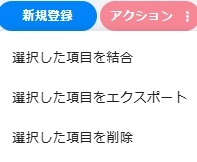
You can marge multiple language assets to create another language asset. Select the check box of the target language asset on the list screen and click [Merge] icon in Batch Processing menu. You can merge language assets with different source file formats. Well, language assets of different types ("TM" and "Glossary") can also be merged (in that case, the type of combined language asset will be “TM”). LeftoverTM can also be used for merging, so if LeftoverTM is unexpectedly created when registering a language asset, you can merge it with the main TM as needed.
Export of language assets
You can export the registered language assets. Select the check box of the target language asset on the list screen and click [Export] icon in Batch Processing menu. The export process will begin and, once complete, you can download it from [Download] screen in the navigation menu. Please note that depending on the size of the language asset, it may take some time for the export to complete.
Deletion of language assets
You can select one or more language assets and delete them at once. Select the check box of the target assets from the list, and click [Delete] icon in Batch Processing menu. Please note that deleting an asset has the following effects.
- LAC (Language Asset Management Menu): The language asset no longer appears in the list.
- LAC (Custom MT Management Menu): The language asset no longer appears in the list of the available assets for creating a custom trained model or custom glossary model.
- Quick PE: When data of a language asset is deleted, it no longer appears in the list of [LAC Glossary] and [LAC Translation Memory] in Group Details screen. Also, if there is a project that uses the deleted asset, it is possible to reopen File Editor screen of the files in that project, but the matching processing with TM will not be executed even when you run the re-translation.
Processing time of language asset registration
Please note that it takes a certain amount of time for the file imported in Language Asset Registration menu to be registered as a language asset. The processing time depends on the registration method and import category you choose, the size of the original file(s), and your network connection status. Once the status is “Import Complete” in Language Asset List, you can rename the language assets, edit, merge, or delete the source/target text in Language Asset Editor.
前の記事
Style Guide Manager (Style Guide Details)
次の記事
Account Management (Account Tentative Registration)