

The relationship of the organization, and groups and projects in Quick PE
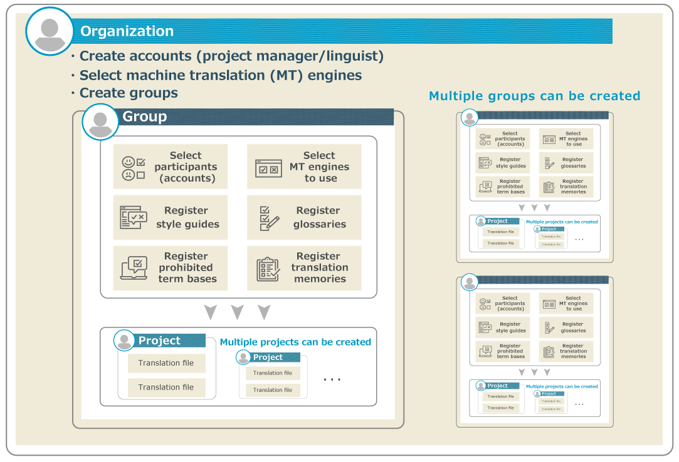
The relationship between the organization, and groups and projects in Quick PE is roughly as follows.
-
A project manager can create one or more groups in his or her organization.
-
The project manager can see a list of the groups registered in the organization to which he or she belongs. Even if you are not a member of a group, you can change the details of the group by referring to the group list and its details screen.
-
For each group, select the accounts that will participate in the group (as a project manager or a linguist) and the MT engines to be available. Also, register your project reference information (style guides, glossaries/LAC glossaries, prohibited term bases, and translation memories/LAC translation memories) as required.
-
Can create multiple projects in a group.
-
In Project Details screen, you can select the necessary information for the project from the accounts, MT engines, and project reference information available for each group, then upload the files for translation (source file) and set up the detailed information for the project.
-
Project managers and linguists can only view a list of projects in which they are involved. They will not be able to view projects in which he or she is not a participant.
Settings in Group Details screen (basic information)
In Basic Information section of Group Details screen, you can set the following items;
- Group name: Any text to identify the group
- Project Managers and Linguists: Select who can participate in the group from the accounts that belong to the same organization as the group. Click [Add/Edit] button to list only those accounts with the respective roles.
- Machine translation engines: Select from the machine translation engines available for the organization to allow to be used in projects belonging to the group. Please select/unselect [Use] checkbox depending on your selection.
Settings in Group Details screen (reference information)
In Reference Information section of Group Details screen, you can set the following items;
- Style guide: Select the style guides to make available for the group. Making selection is not required. Also, you can select multiple style guides. You can select those style guides that have registered by the project manager who belongs to the same organization as you.
- Glossary: Select the glossaries to make available for the group. Making selection is not required. Also, you can select multiple glossaries. You can select those glossaries that have registered under the organization you belong to.
- LAC glossary: Select from the glossaries registered in the LAC. Only glossaries those [Using Data in Quick PE] is set to "Enabled" in Language Asset Management menu in LAC are listed. Making selection is not required. Also, you can select multiple glossaries.
- Prohibited term base: Select the prohibited term bases to make available for the group. Making selection is not required. Also, you can select multiple prohibited term bases. You can select those prohibited term bases that have registered by the project manager who belongs to the same organization as you.
- Translation memory: Click [+Add Translation Memory] button to register (upload) a translation memory to make available for the group. You can only upload tmx files in the correct format. Making selection is not required. Also, you can select multiple translation memories without any restriction for the language direction.
- LAC translation memory: Select from the language assets (translation memories and glossaries) registered in the LAC. Only language assets those [Using Data in Quick PE] is set to "Enabled" in Language Asset Management menu in LAC are listed. Making selection is not required. Also, you can select multiple language assets without any restriction for the language direction.
Translation memory restrictions/considerations
Please note that the following restrictions apply to files that can be uploaded as translation memories on Group Details screen.
- Supported file format and extensions: tmx
- File size: 100MB
- Number of lines/characters: No restrictions
- Language: English and Japanese
Notes on changing group details after registering a project
Some of the information in Group Details screen can be changed after you have created a project that belongs to the group. The scope of influence varies depending on the information.
<Basic Information>
- Group name: Can be changed. The group name displayed on Project Details screen will change.
- Participants (project managers and linguists): Can be changed, however, the participants will be actually kept as they are for the projects unless updating the participants on Project Details screen.
- Machine translation engines: Cannot change the machine translation engine that is already selected on Project Details screen. Can be changed those engines which are not selected on Project Details screen.
<Reference Information>
- Style guide, glossary/LAC glossary, and prohibited term base: Can be changed, however, these style guide, glossary, and prohibited term base will be actually kept as they are for the projects unless updating the relevant information on Project Details screen.
- Translation memory/LAC translation memory: Can be changed (deleted) basically, however, cannot be changed (deleted) if the translation memory is being used in an already started project.
前の記事
Group Management screen (Group list)
次の記事
Organization Management (Payment History)