

The name of parts in File Editor
File Editor is broadly divided into three panes.
- Control bar (top of the screen): A pane with buttons for each action the user performs on File Editor.
- Edit area (center of the screen): This is the pane where you can post-edit the translation.
- References pane (right and bottom of the screen): A pane that displays reference information, such as Translation Reference, Term Field, and Validation Results.
Basic workflow on File Editor
- Once the file content is displayed in File Editor, post-edit the translation in [Modify Target Text] column in the edit area to complete the appropriate translation for the text in [Modify Source Text] column (source text, or modified source text).
- [Modify Target Text] column defaults to either ① translation memory matches (100% matches) or ② the MT engine output set as "First priority" in Project Details screen, for the text [Modify Source Text] column. ① takes precedence over ②. *However, only in the case of bilingual files (with the file format xlf, xliff, mqxliff, or sldxliff), the translation has already been saved in the segment, and its translation status (the match rate set for the segment in the bilingual file) is 75% or more, the translation will be displayed with priority over ②.
- Click any column for each segment to display the MT engine output (outputs from "First priority" and "Second priority" MT engines) for the text in [Modify Source Text] column, into References area. If you want to use that translation, click [Insert] button to adopt it in [Modify Target Text] column.
- If the MT engine does not produce the output you expect, there may be a problem with the source text. If this is the case, you can manually edit the text in [Modify Source Text] column and click [Retranslate], then the "First priority" MT engine output will automatically be inserted into [Modify Target Text] column. * The retranslation process performs the same steps as the file import process.
- You can manually enter a translation in [Modify Target Text] column for post-editing.
- Once you have decided which translation you want to adopt, click [Edit Status] column of the segment to set it to " Fixed".
- You can also change to " Fixed" by pressing Ctrl+Enter on the keyboard.
- In order to save your edits, temporarily save them with [Save] button as appropriate.
- Once you have fixed the translation for all segments, use [Validation] button to verify that there are no problems with the translation.
- Validation functions are performed for style guides, glossaries, and inconsistency check. If there are any violations in [Modify Target Text] column, the segments are highlighted, and a summary is displayed in [Validation Status] column and details in [Validation Results] area.
- The system verifies [Source Text] column with the prohibited term base, but does not highlight any violations. The corresponding prohibited term will be displayed in the [Modified Source Alternatives] area in the upper right of the screen. Please correct the texts in [Modify Source Text] column as necessary and re-translate it.
- The reverse match rate is also updated. If [Reverse Match Rate] value is extremely low, there is a possibility of missing or mistranslated translations, so please check the translation carefully.
- After validating and re-editing if necessary, press [Save] button to save your edits, and then press [Complete] to finish editing.
- [Download] button allows you to download the translated results in the original file format. If the option "Output In Bilingual Format(Word/Excel/Text/SRT)" is enabled for the MT engine in Project Details screen, a file including both the source and translation texts will be downloaded.
- Clicking [Close] button exits File Editor screen itself.
The function of each button on the control bar
The control bar contains various buttons for the user to perform post-editing.
| Button | |
| Features Overview | |
| Close | File Editor screen closes. Unsaved edits will be lost, so be sure to save them before pressing this button. |
| Download | Downloads the translated data (the contents of the current [Modify Target Text] column) in the original file format. If the option "Output In Bilingual Format(Word/Excel/Text/SRT)" is enabled for the MT engine in Project Details screen, a file including both the source and translation texts will be downloaded. |
| Save | Saves to overwrite the current edits to the working file.
|
| Revert To Saved Version | Reloads the edits made at the time [Save] button was last pressed into Edit area. |
| Validation | Validates the current translation by referring to the style guide, glossary, and inconsistency check settings selected for the project. All segments are in scope. Segments that fail as a result of validation are highlighted, and a summary of the error is displayed in [Validation Status] column. The reverse match rate for all segments is also updated.
|
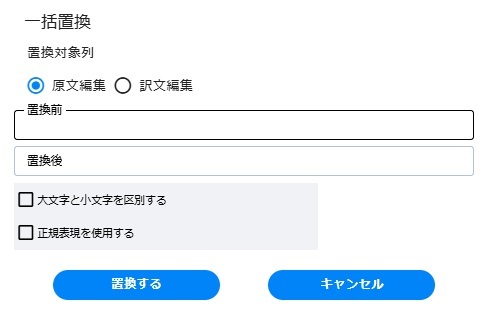
| Batch Replace | Performs a batch replacing in Edit area. You can specify whether to target [Modify Source Text] column or [Modify Target Text] column. It is also possible to search (replace) using any regular expressions. |
| Retranslate | Retranslates the text in [Modify Source Text] column of the currently active segment or the segments selected (checked) in [On/Off] column (1 or more segments), and overwrite the translation in [Modify Target Text] column with the MT output result. If no segment is active and no segment is selected, clicking the button does not perform a retranslation. * The retranslation process performs the same steps as the file import process. |
| Clear selection | Deselects (uncheck) all segments that are already selected (checked) in [On/Off] column. |
| Concordance Search | Searches for a string in all translation memories/LAC translation memories set for the project. You can specify “Source Text” or “Target Text” as the search target. If the string is found in the translation memory, it is displayed in [Concordance Search Results] area.
|
| Complete | Changes [Edit Status] of all segments to " Fixed". Edits are not automatically saved, so if you are editing after the last time you saved, be sure to press [Save] button again. When completed, click [Close] button to exit Editor screen. Once complete, you can open Editor screen again and edit the contents until the project is completed. |
Updating and exporting TM/LAC TM
The following settings/processes are available for the TM and LAC TM selected in the project.
- Specify TM to update: You can specify only one TM to update with the post-edited contents in Qucik PE's File Editor. Please check [Allow Update] of the TM you want to update.
- Export as tmx file: Allows you to export the latest contents of TM into tmx file format. Click [Export] button in each line. You can export the latest contents at the time of click. If any inline tag (formatting information) is included in the source text, the icon on File Editor will be replaced by the tag in the tmx file as follows.
| The source text on File Editor | |
| The source text in tmx file | |
| 1Warning!2 | <g>Warning!</g> |
The feature of each column in Edit area
In Edit area, the content of the file to be post-edited are displayed. You can edit it directly here. Some columns can be manipulated (selected/modified) by the user, and others are read-only.
| Column | User Interaction (Select/Change) |
|
| Features Overview |
||
| On/Off | X | Select (check) to specify multiple segments to retranslate. |
| ID | Segment ID (sequential number) | |
| Source Text | The source text of the content you are working on. If the project has a style guide, glossary, or prohibited term base, and a violation in [Source Text] column, a validation error may occurs when the file is opened in Edit area. | |
| Modify Source Text | X | If there is obvious typography in the source text, or if the translation shown in [Modify Target Text] column is incorrect due to the wrong source text in [Source Text], you can modify the source text manually. This is an useful feature to obtain the best translation results from a MT engine. The default view displays the same text as [Source Text] column, so you can edit it in this column as needed. |
| Translation Status | Indicates how the text (translation) in [Modify Target Text] column was output. ・TM: This means that a translation of 100% match from the translation memory has been adopted. ・MT: This means that the translation is an output result by a MT engine. ・Percentage: If the original file is a bilingual file (mqxliff or sdlxliff) and a translation with a translation status of 75% or higher is adopted, that number is displayed. ・TM+: This means that there is more than one translation of 100% match in the translation memory. In this case, one of the corresponding translations is displayed by default, so check the translation displayed in [Translation Memory] section in References area. ・LS: This is a lock segment. You cannot edit [Modify Target Text] column of the segments with this status. |
|
| Modify Target Text | X | The translation for the text in [Modify Source Text] column. When you open a file in File Editor immediately after the file import process, either ① translation memory matches (100% matches) or ② the MT engine output set as "First priority" is displayed by default. ① takes precedence over ②. *However, only in the case of bilingual files (with the file format xlf, xliff, mqxliff, or sldxliff), the translation has already been saved in the segment, and its translation status (the match rate set for the segment in the bilingual file) is 75% or more, the translation will be displayed with priority over ②. Also, if you open a saved file once it has been saved, the saved translation will be displayed. You can post-edit it manually or update it by doing the following: In addition, Ctrl+Z undo processing is also valid within a segment. ・Update the text in [Modify Source Text] column and perform a retranslation by [Retranslate] button.
|
| Reverse Match Rate | Reverse Match Rate is the quantification of the gap (difference) between the text in [Source Text] column and the reverse translation of the text in [Modify Target Text] column. You can check for the purpose of detecting those errors using the characteristic that the reverse match rate is extremely low when there are omissions or mistranslations. The reverse match rate is recalculated and the numerical value is updated each time you run the validation or retranslation processes in File Editor. * For the reverse translation, the output results of the MT engine set in the project is used to calculate the reverse match rate. |
|
| Edit Status | X | The edit status of each segment. : Unedited : Editing : Fixed |
| Validation Status | A summary of the results of the validation process is displayed as an icon and text. Click to view the details in [Validation Results] area in References pane. |
Display inline tags in [Modify Target Text] column
When the file import process initially displays the translation memory matches (100% matches) in [Modify Target Text] column, that is, when [Translation Status] column displays “TM” or “TM+” , formatting information (inline tags) present in the source text is expanded to the tag instead of the blue number icon (see example below). Please note that this measure is taken to avoid processing errors caused by inline tags included in strings in the translation memories.
| Source Text | |
| Modify Target Text | |
| 1Warning!2 | 警告!<g></g> |
Features of each area in References pane
The References pane displays a variety of information that you can reference when you do post-editing.
| Area | |
| Features Overview | |
| Modified Source Alternative |
Displays information if the source text in [Source Text] column of the segment you clicked contains any validation errors. |
| Translation Reference | The output of "First" and "Second" priority MT engines set in the project is displayed for the source text in [Modify Source Text] column of the segment you clicked. Click [Insert] button to insert the output into [Modify Target Text] column. |
| Term Field | If [Modify Source Text] column of the segment you clicked contains a term from the glossary set in the project, it will be displayed here. |
| Verification Results | Click the result summary in [Validation Status] column of the segment where the validation error occurs to display the details here. |
| Concordance Search Results | [Concordance Search] button displays the results of searching for any string in the translation memory here. |
Import process of the source file
The import process is executed at the start of the project. The summary of the process is as follows.
- Extracting the contents of the file (source text, and translation when exists) to File Editor screen.
- Matching with the selected translation memories
- Automatic translation by the selected machine translation engine
- The relevant verification processing (with the selected glossaries and prohibited term bases)
- Reverse translation processing, and the reverse match rate calculation
Retranslation function
The process summary of Retranslation function is as follows.
- Matching with the selected translation memories
- Automatic translation by the selected machine translation engine
- The relevant verification processing (with the selected style guides, glossaries, and prohibited term bases)
- Reverse translation processing, and the reverse match rate calculation
Verification function
The process summary of Verification function is as follows.
- The relevant verification processing (with the selected style guides, glossaries, and prohibited term bases)
- Reverse translation processing, and the reverse match rate calculation
- Inconsistency check (only when the check is "Enabled" for the project)
What can do with Batch Replace function
By using Batch Replace function in File Editor screen, you can easily perform the following processing.
- Batch correction of typos included in the source text: Set “Column(s) to be replaced” as [Modify Source Text], enter the typo string to be corrected in “Before Replacement”, and the corrected string in “After Replacement”.
- Batch correction of typos included in the target text: Set “Column(s) to be replaced” as [Modify Target Text], enter the typo string to be corrected in “Before Replacement”, and the corrected string in “After Replacement”.
- Batch replace strings that match to a specific pattern: Set “Column(s) to be replaced”, enter the regular expression to replace in “Before Replacement”, and enter the corrected pattern or string in "After Replacement”, and then check [Use regular expressions].
Sample regular expressions
The rules of each item must be specified by a regular expression. The following is a list of samples of typical regular expressions, but if necessary, you can find them on a page provided by Microsoft (https://docs.microsoft.com/ja-jp/dotnet/standard/base-types/regular-expression-language-quick-reference) or elsewhere.
| Search target | String to be entered | |
| Usage | ||
| Double-byte numbers | [0-9] | Search for double-byte numbers to set a rule that only one-byte numbers are used |
| Double-byte space characters | [ +] | Search for double-byte spaces to set a rule that only one-byte spaces are allowed |
| Consecutive double-byte spaces | \u3000+ | Search for contiguous double-byte spaces |
| Katakana words separated by Nakaguro | [ァ-ヴー]+(・[ァ-ヴー]+)+ | Search for katakana words separated by Nakaguro |
| Consecutive double-byte alphanumeric characters | [0-9A-Za-z]+ | Search for consecutive double-byte alphanumeric characters |
How to undo the edits
Your edits can be undone in the following ways:
- Undo the entire editor screen: Click [Save] button in the control bar to save the entire contents in File Editor at that time. To discard any subsequent edits and revert to the saved contents, click [Revert to Saved Version] button. The entire contents return to the version last saved.
- Undo an edit in a segment: To undo (undo one or a few actions) in the segment you are working on, you can use Ctrl+Z (Ctrl+Z) to undo within the segment.
前の記事

NG word list management (NG word list)
次の記事
Project Management (Project Details)